Blog, Tips

Adding a texture

Why not add an extra dimension to your photographs by adding a texture. From giving your photographs the appearance of being printed on different types of papers or materials, to using surfaces such as rust, wood or peeled paint to add a new creative look and feel, adding textures is a heck of a lot of fun and creates endless possibilities for your photographs .

Adding textures is really quite a simple process, all you need is a basic understanding of using layers in Photoshop. The real trick is knowing what images to use and also what kinds of textures will work with them. There is no right or wrong, but you will know whether a picture works or not. It’s just down to trial and error.
The first thing to do is get yourself a few textures together. Get out and take pictures of all manor of things – tree bark, brick, wood flooring, peeling paint – all these and more can make interesting backdrops for your pictures. In addition to making your own texture library there are many other places offering ready made textures, which are great if you want to get stuck in as soon as possible…However, there are a couple of things to remember if using other peoples work. Firstly, I personally feel that there is a greater satisfaction if all the work that goes into creating your picture is your own. Secondly, make sure you look at the licensing terms of any third party images you want to use. Ideally you’ll want these to be Public domain should you wish to sell your work later down the line. I see a lot of folks offering textures under Creative Commons licenses and this is where you may want to really consider whether or not you want to use said images. The vast majority of creative commons works include the ‘non-commercial’ part, meaning that if you wish to sell your images you’ll need to get permission from the creator of the the texture first. To be honest this is an extra hassle that I can do without. If, however, you’re doing it for your own personal pleasure then go ahead and use whatever you think will work best for you.

Once you have your images the next thing is to combine them. Open both images into Photoshop and either use the move tool to drag the texture photo onto your main photo or simply copy the texture image and paste it onto your main image. You should see each image as a separate layers in the layers pallet. Making sure the texture is the top layer, change the blend mode to either multiply or overlay, whichever you like the look of best. After that you can muck about with opacity, rub bits out using the eraser tool, or pretty much do whatever you like.

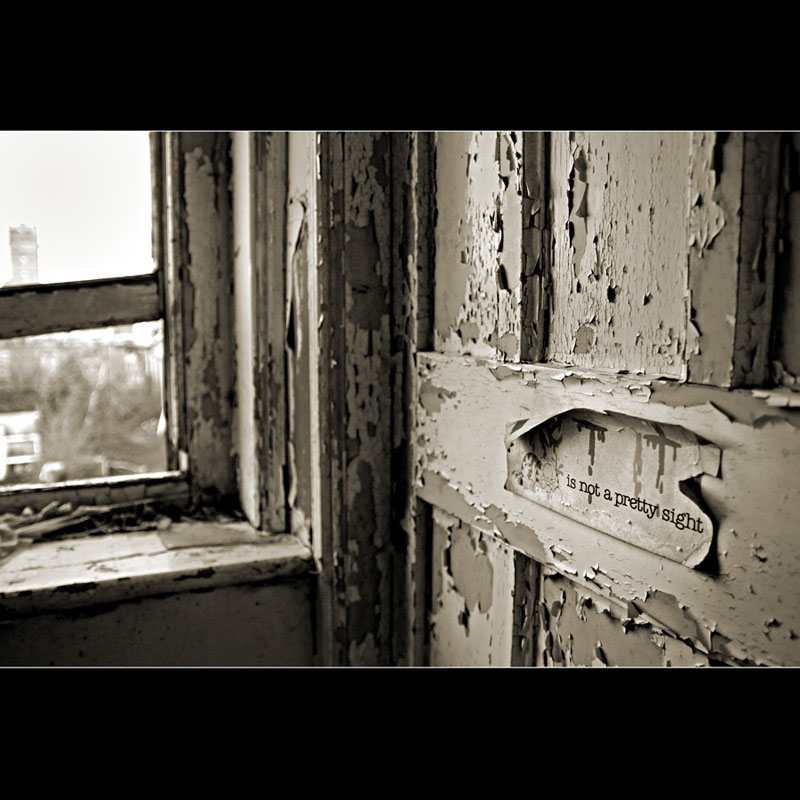
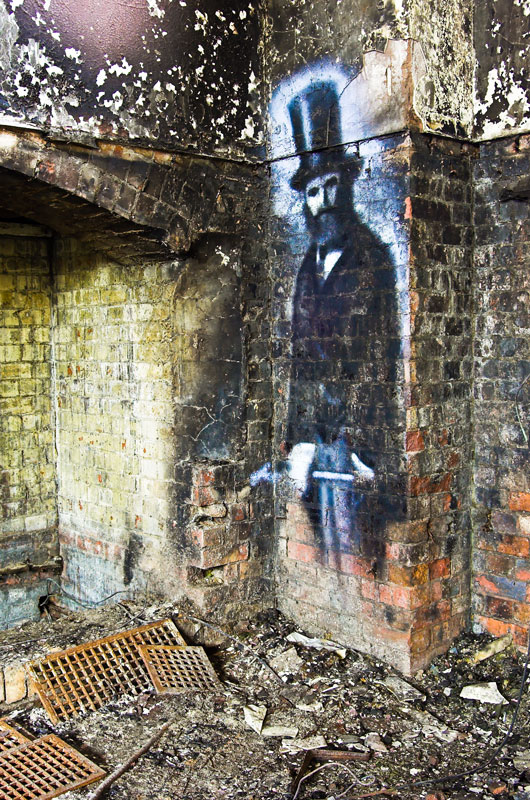
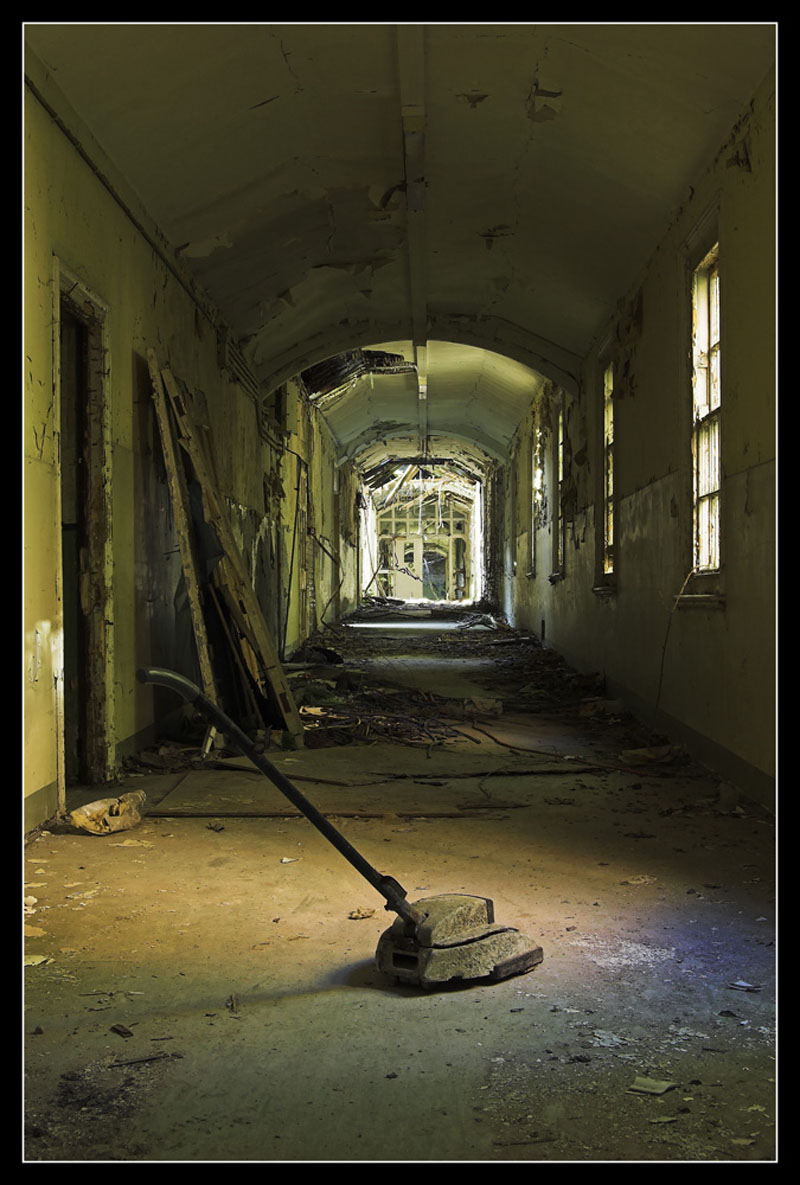
For the images above and below I used the same texture image, (a shot of a dirty old window) which gives these images a more vintage feel, plus the uneven putty made for a good border too.
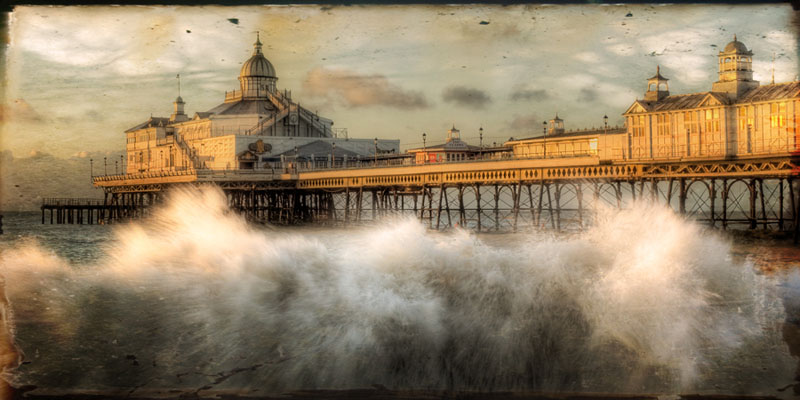
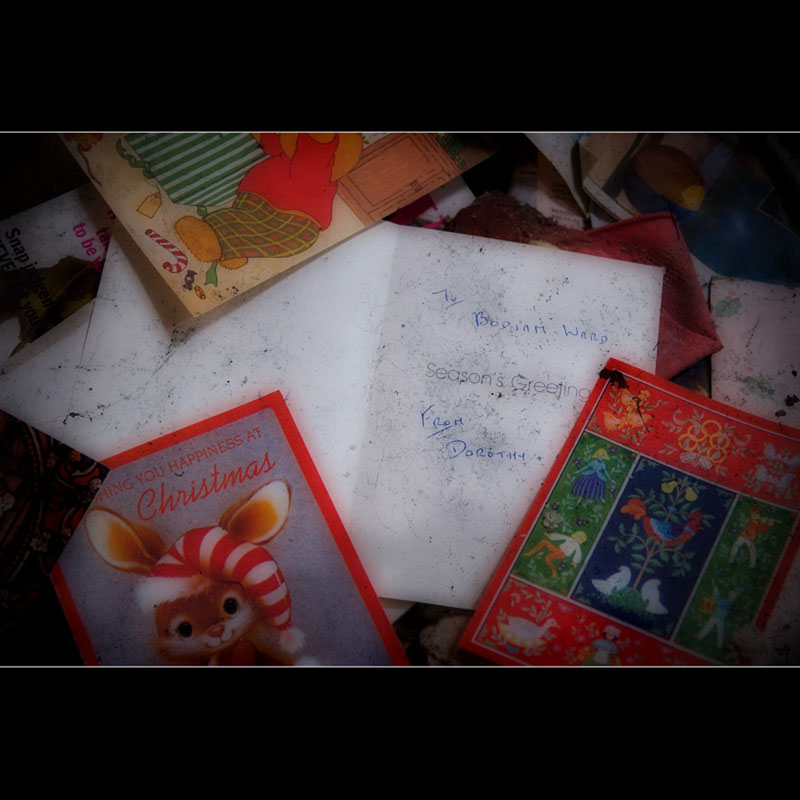
For the image above I used the same texture as the first two for the border and then added a second texture (peeling paint) to use over the paperwork.

For this image I used another dirty window covered with cobwebs, only this time I overlayed it twice and in different rotations to create a backdrop for the rose. I then used the eraser tool to rub through where the rose was.

It’s not very often that I do these kinds of images but they are a lot of fun and can make pleasing works of photo-art.

If you have any other suggestions and tips then feel free to leave a comment for others to see.

Blog, Urbex

Restraint

I found this shot whilst going through my old pictures from Hellingly hospital and decided to process it differently to how I had done previously. I believe the chair was used to restrain disabled children during meal times to make life easier for both patient and staff, if anyone is more knowledgeable than I then feel free to leave a comment as to its proper use. Coming across an item like this in a derelict hospital does pull at the heart strings however and it was a feeling that I thought was best brought out by setting the white balance to fluorescent to give a more blue, sombre look. After that I then desaturated and darkened the brickwork to help pull the viewer straight toward the chair.

Olson (version 3) by Boards of Canada seems to fit the sentiment while viewing this photo.

Blog, HDR, Tips

Why HDR?

So I’m not the first to show the benefits of using HDR but I thought I’d do a short post on it anyway. 🙂

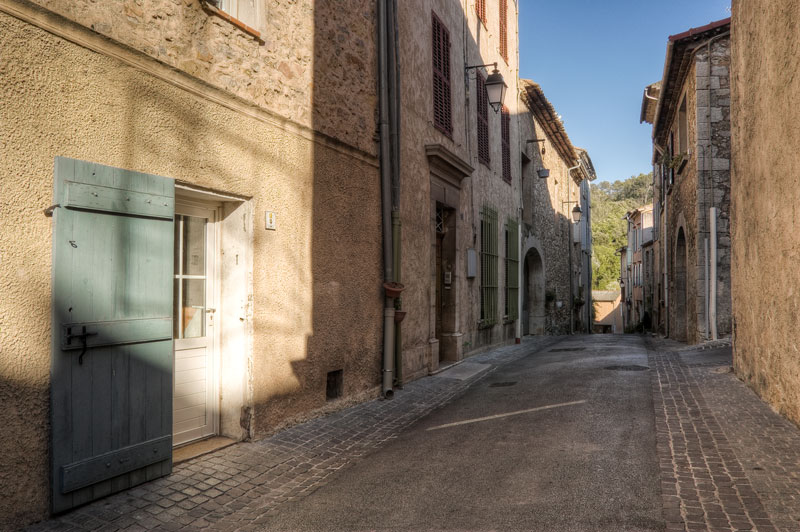
While going through some photos of our holiday to the south of France last summer, I stumbled upon a set of brackets that I hadn’t done anything with, that of an empty street in Provence (above). Now I’ll admit there’s nothing that special about the shot, but there was enough I liked for me to press the shutter. I think it was the beautiful weather and peacefulness that I found pleasing. Whatever my motivation, it shows the usefulness of bracketing your photographs to make an HDR image that  represents a scene more accurately than a single shot can.

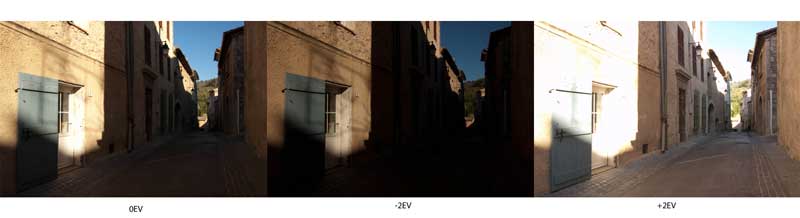
These three shots show the different exposures needed to capture all of the elements within the scene. The one on the left is the cameras recommended exposure, the middle is -2EV and is needed to retain detail in the white door which had blown out in the left example, finally the right shot was +2EV and was needed to  capture the areas in shadow. Now to my eye, the areas in shadow on the overexposed image are pretty much as I saw them on the day, so as you can see, due to the huge contrast that my eye compensated for but the camera couldn’t, combining the three shots was the best way to achieve a photo with the tonal range more accurately reproduced.  (Whether you use an HDR program to combine your shots or merge them by hand in a program like Photoshop is up to you). Once I have the tonal range sorted I can then continue to work on an image, giving it the look and feel I have in mind, if I so wish.

The main image was produced using Photomatix Pro with final adjustments done in Lightroom. There are plenty of other HDR software programs out there but it’s up to you to give them a try to see which you prefer, I always seem to come back to Photomatix.

I hope this has been of some use. Like I said, it’s a post to show the benefits of HDR rather than being a tutorial.

Thanks for looking.

Blog, Urbex

Memories of Hell Pt4

So here we are at my last tribute to Hellingly hospital. I will always have fun memories of sneaking into and walking around the many wards and corridors, and am glad that myself and many others got a chance to record and make so many great pictures.

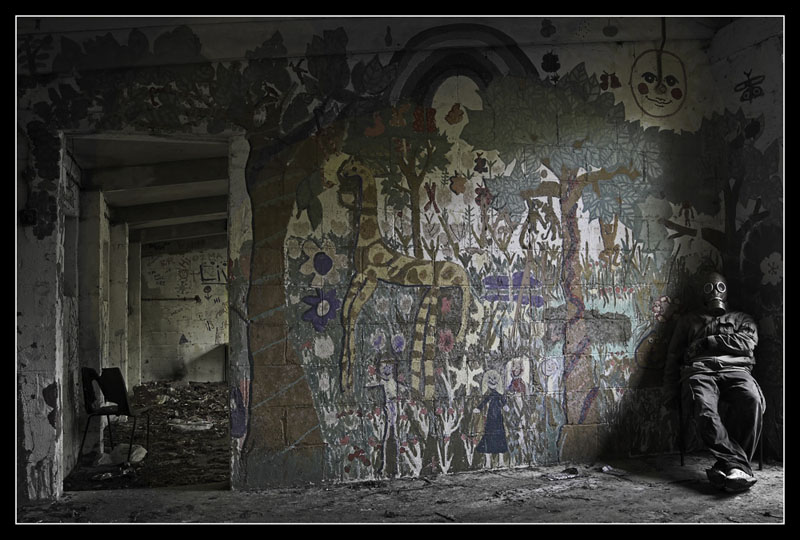
Every now and then I like to add a little something to make a picture either fun of thought provoking, usually involving me somewhere in the frame. The shot above (taken April 08) was my first attempt. Seeing this children’s area gave me an idea to pop on the ol’ gas mask to give the scene a post apocalyptic feel, well that was the idea anyway. I work with dangerous chemicals so we have these gas masks on site, giving me easy access to a now very popular urbex prop.

(Above) I decided to have a bit more fun using a zombie costume that I had for a fancy dress party…No point in it sitting on top of the wardrobe collecting dust.  I ended up posting this pic for Halloween on Flickr and the over the top grunge look was achieved by using my colour/mono layer blend technique. Fun but silly. 🙂

A merry Urbex Christmas!

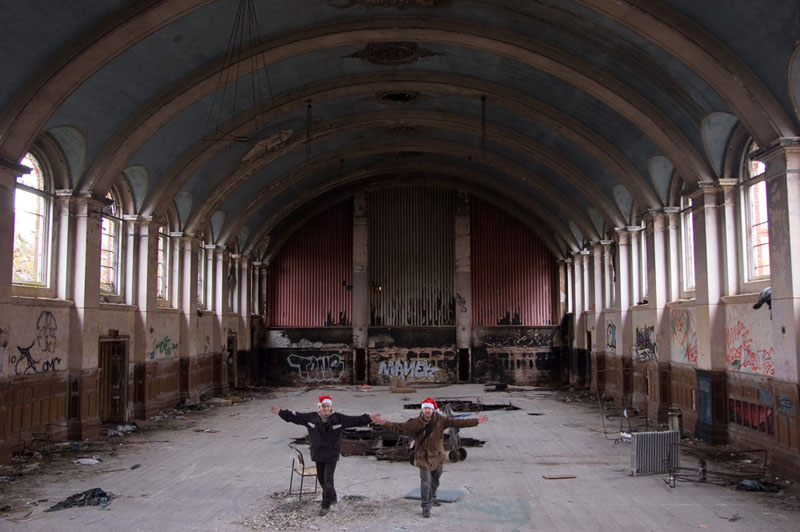
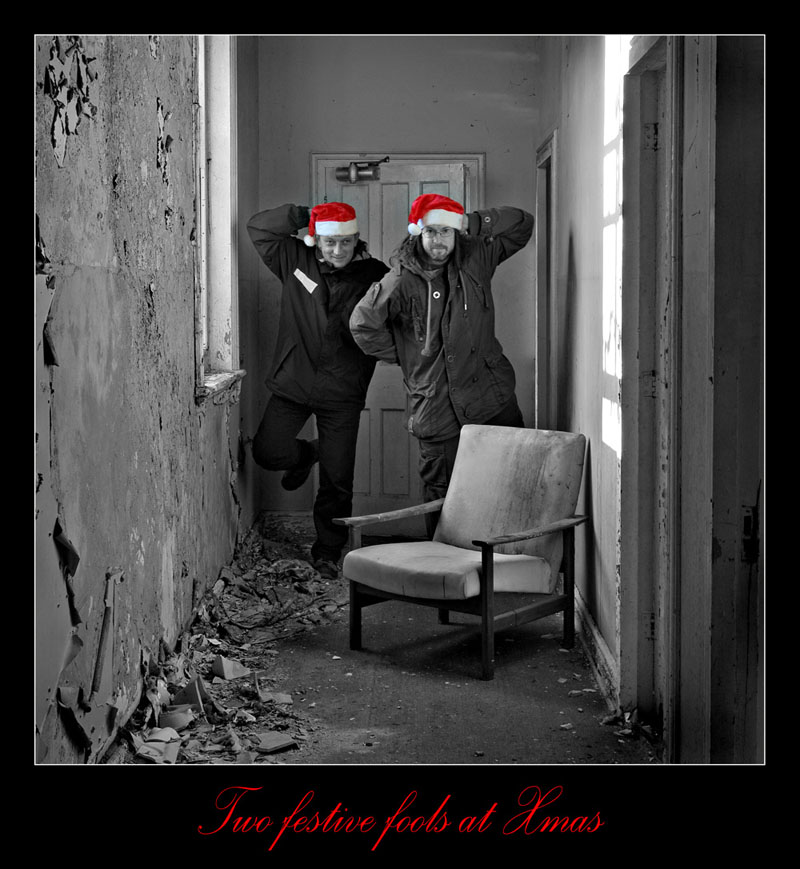
My friend Rob (on left) and I took another visit during December 09 and both came up with a the silly idea of getting a couple of Xmas hats to pose in. I thought doing a shot of us in the main hall looking like a couple of fools would be a fun shot and something I could post as an online Xmas card to all my fellow Urban exploration friends. Then I made another in one of the corridors.

Rob(left) Me(right) doing a Morcambe and wise pose. It was so cold that day.

So I’ll round off this post with just a few more ‘normal’ shots. Goodbye Hellingly, you’ll be missed.

Thanks for looking.


Blog, Urbex

Memories of Hell pt3

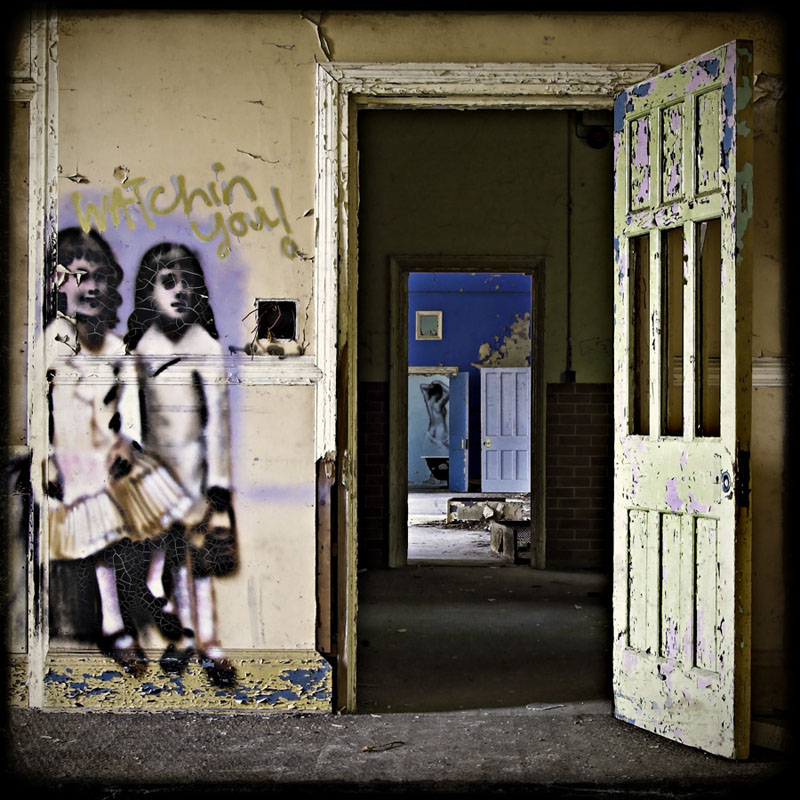
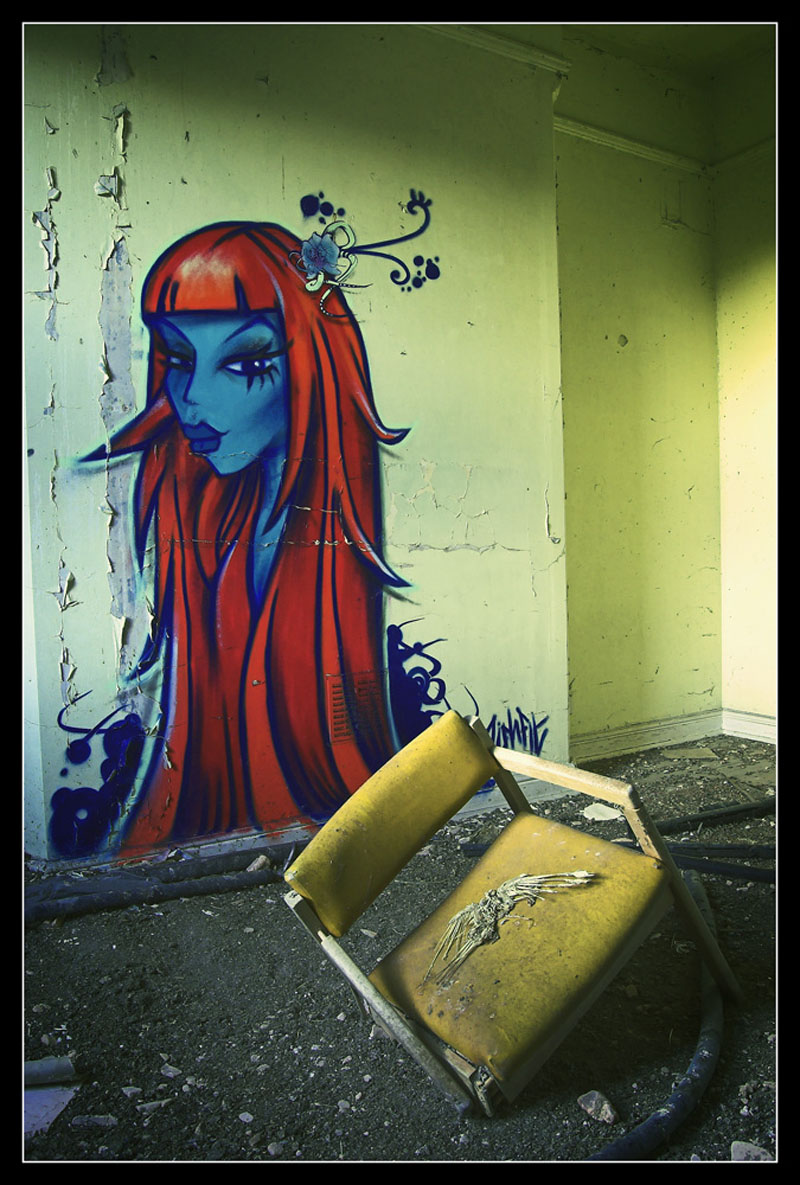
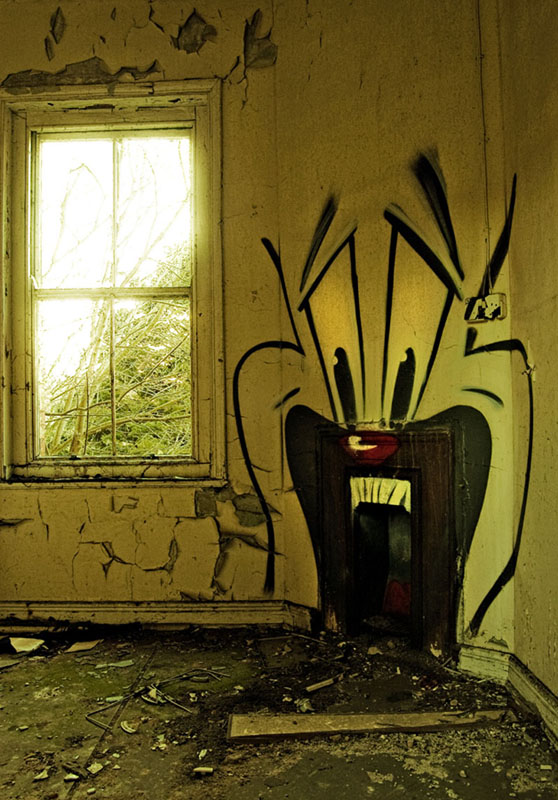
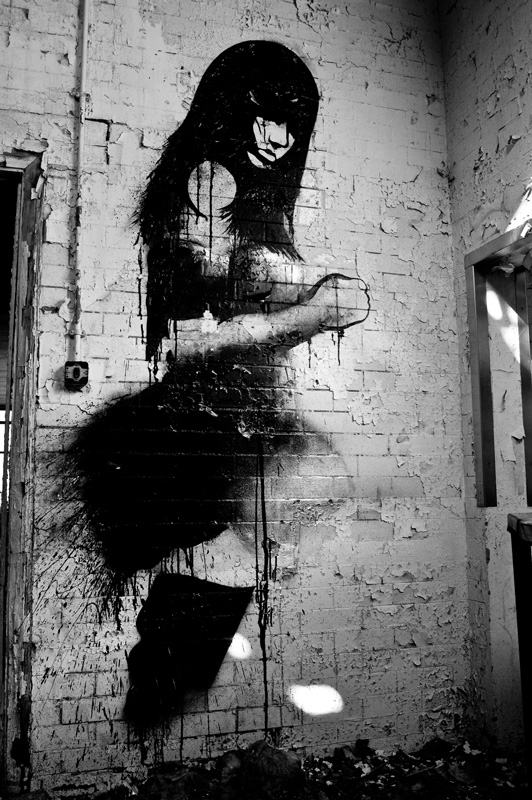
So as mentioned before, the initial reason for going was to see all the graffiti. There is too much to show everything as this post would go on for ages, so here is a small selection of my favourite pieces. Some are straight shots and some have been tweaked, such as giving a cross processed look.

There is quite a number I didn’t post today, perhaps sometime in the future. I think I’ll wrap up this series on Hellingly hospital in the next post. Thanks for looking.

Blog, Urbex

Memories of Hell Pt2

Fancy a bath? I thought not. I can’t explain what it is, but there is something strangely alluring about a disgusting rotten old bath, a least to my mind. Maybe there’s something wrong with me. Perhaps I should see a doctor.

For the most part I tend to work in colour, sometimes muted or combined with a mono layer, but every now an again I find that certain images work better having the colour taken away (left). Colours can be distracting at times and by removing it you simplify the scene helping the viewer concentrate on the main feature, as well as giving it that timeless quality that mono images seem to produce.

It is always good to get in close and concentrate on the small details too. Something I always have to push myself to remember.

The corridors in Hellingly were fantastic, after years of neglect the weather had taken its toll leaving them in a terrible state, some with the roofs caved in and with plenty of detritus over the floors. Navigating them was a real challenge on the first couple of visits, they were like a maze and we’d often find ourselves going round in circles.Corridor beside the main hall.

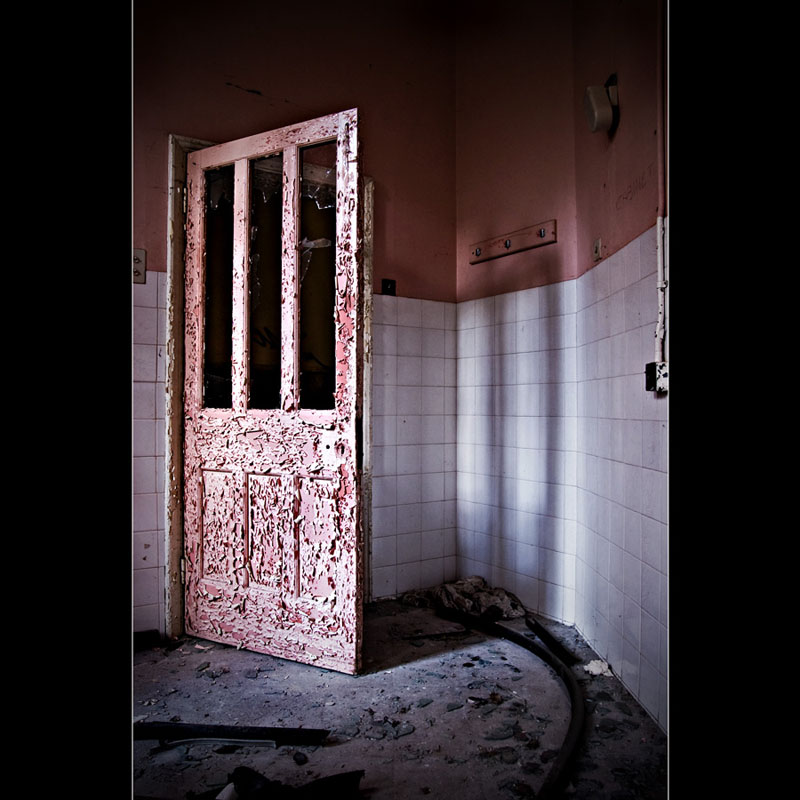
The shot above was taken in a darkened section as I wanted to get a view through the broken window to use it to act as a natural frame. I had to use the cameras pop-up flash set to low power to illuminate the door as my first attempt didn’t show it at all. The flash also helped pick out the edges of the glass.

Always nice to find a prop to use as a focal point, moved slightly into position by yours truly.

So I think I’ll leave this post here as there is a lot more to go through and I don’t want this post to go on forever. Next time I’ll show you some more of the great graffiti that was to be found.