Blog, Events, HDR, Mono, Tips

Mono Monday-Morgan

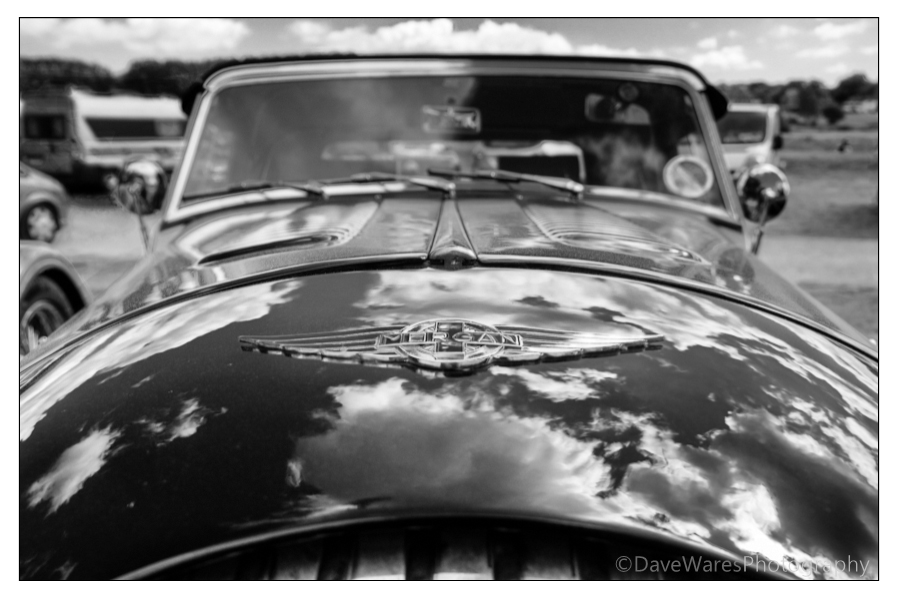
So I thought I’d continue with another shot taken a couple of Sundays ago at Bodiam castle for this weeks mono Monday. For this shot I got in close with a fairly wide angle (26mm on cropped sensor) to try and achieve a more dynamic view of this classic Morgan, keeping the aperture to a modest f8 to throw the background just out of focus to create a sense of depth. I still bracketed my shots due to the harsh sunlight but when it came to putting them all together in Photomatix, the top half being of soft focus did not work out at all well, with lots of nasty edges to be seen. I decided the best way around this would be to bring both the HDR version and one of the single brackets into Photoshop combining them using layers, then I gently erased the top half of the HDR image to reveal the single exposure underneath . So what you see above is a mix of both HDR and a single exposure.

The next step was to bring this back into Lightroom, where I used a combination of two or three of onOne software’s free plugins to convert to black and white, then I continued to tweak things until I was happy. HDR mono is not something I’ve really done before, I hope you like the result.

Thanks for looking.

Blog, Landscapes, Tips

Having a go at time-lapse

A while a go I decided to have a stab a creating a time lapse video. Please turn your sound on to hear the music.

This video is only my second attempt so there are a couple of faults with it, the main one being the spot of sensor dust. Darn these Dslrs!

Creating a time lapse movie is a relatively straight forward process, the main thing you’ll need though is a lot of patience. First of all there will be a small amount of maths that you’ll need to calculate before you set out. First is the intended length of your movie, I would suggest anything between 30-60 seconds. This may not sound a lot but things will become a bit tedious if longer than this, unless it’s something pretty spectacular. Next you need to determine the length of the event you will be shooting, for example in this movie I decided I wanted to capture half hour before and after sunrise, so an hour in total. Lastly (and this is optional but a good guideline to stick to) movies tend to be shot at around 24-25 frames per second, so this is the amount of photos you’ll need to take for every second of movie; so for example if you wanted a 30 second movie you would calculate 24×30=720. 720 will be the number of shots needed to create your 30 sec movie. Now you need to determine at what intervals you’ll need to take each photo, which is as follows: 3600 seconds ( an hour in seconds that I want to capture) divided by 720 shots =5 So you’ll need to take one shot every five seconds.

So again as a list:

24 shots multiplied by length of movie in seconds =total number of shot needed

Convert duration of event into seconds (e.g 1hour=3600 seconds)

Divide duration of event by number of shots needed to give the interval at which each shot should be taken.

Now, there are a couple of ways in which you can do this. One is to buy an intervalometer, a gizmo that plugs into the cable release socket on your camera ( if you have one). This is great as you can just program this with your shots per second and let it get on with it, time to put up your camping chair and get the flask of tea out. Second is the hard way and the way I had to do it (which is probably one of the reasons why I’ve left it so long to attempt another), and that is to do it manually with a remote shutter and a stopwatch. This will be the thing that puts most people off as it is really tedious, but the results can be well worth it I can assure you.

How you set the camera up will depend on the situation and a little trial and error will be needed, however I would recommend switching to full manual, that includes the focus and choosing a white balance too rather that having it on auto, that way all of the shots will have a consistent look. No need to shoot RAW either or at max size, this will make the process longer in post and take up an enormous amount of hard drive space.  I would set the file size to small jpeg as even at this size your photos should still be large enough to make a HD movie at 1080p, and the smaller the file the more you can get on a single memory card. You don’t want to be swapping cards during a time lapse shoot.

Making the movie on the computer is not too difficult, you can use Quicktime pro or as I did using Windows Live movie maker or any number of other software out there. If using Windows Live Moviemaker, load in all of your images, highlight them all, then change the slide duration to 0.05 to give you a frame rate of around 24-25 seconds. Add sound, music captions as desired. I would recommend finding copyright free music to prevent any issues.

Hope you enjoyed my rather Heath Robinson attempt at time-lapse and hope my guide is half way understandable. If any one has more tips or suggestions, please leave a comment for others to see.

Thanks for stopping by.

Blog, HDR, Tips, Urbex

Why HDR pt2-For effect

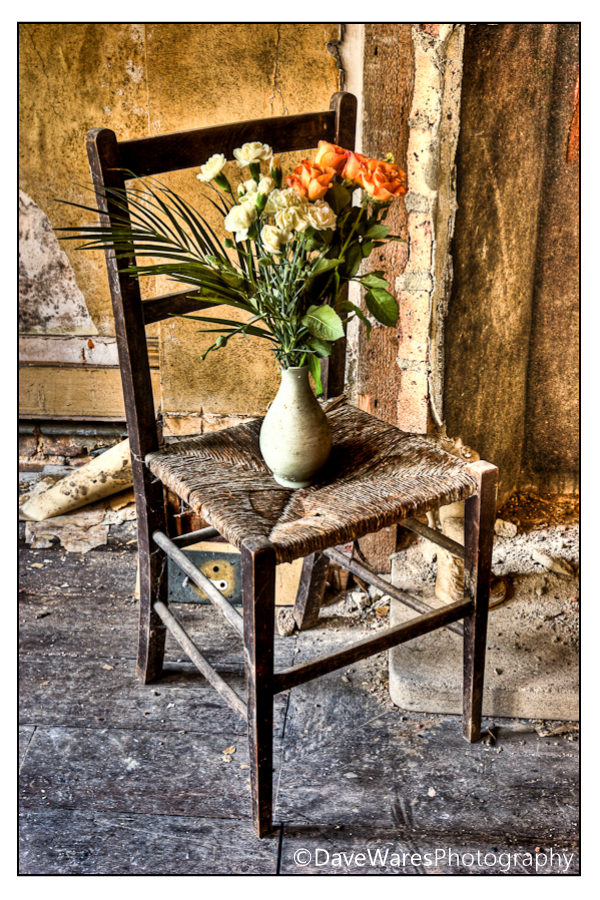
Title-‘For Vincent’

  In a previous post I showed the practical benefits of using HDR to help achieve a better representation of a scene when contrast levels exceed that of the cameras capability. This time I’ve chosen to show how you can use HDR software to give your pictures a much more painterly look.

This area of photography has come under much criticism over recent years and I for one have become rather fed up with it as ultimately is all rather pointless, in fact the argument doesn’t differ too much from what the impressionist painters went though during the 19th century, or indeed the modern artists of today. It simply comes down to this: It’s your art, do it how you want to do it. Don’t let anyone tell you any different. If it’s not your thing, fair enough, ignore it and move on.

Anyhow, let continue…

As explained previously, you will ideally still be bracketing your exposures when out shooting, but you can create this look by making a pseudo HDR image out of one shot if there is a good tonal range running throughout. The difference between making a picture look realistic or painterly has a lot to do with how you set the smoothness slider (assuming your using Photomatix), so in this instance you’ll be wanting to set it more to the left, if not all the way to to the left. There is no hard and fast rule as to how you set all of the other sliders so it’ll be just a case or trial and error as every picture will react in slightly different ways, so play around with all of them to see what happens. For this reason it is always best to have the software reset everything when starting a new project.

In my opinion it’s still desirable to avoid getting halos, but the main objective is to get the dark and light areas to a pretty even level. So that’s really all there is to it. What you’ll end up with is something that (to me at least) looks a lot more impressionistic. This is exactly what went through my mind when I was out on an urbex shoot last year and came across this chair, it immediately screamed of  Vincent van Gogh’s Chair and I set about doing my own take with the vase of flowers.

So have fun with your photography and try something new.

Thanks for stopping by.

Blog, Landscapes, Tips

Slow that shutter

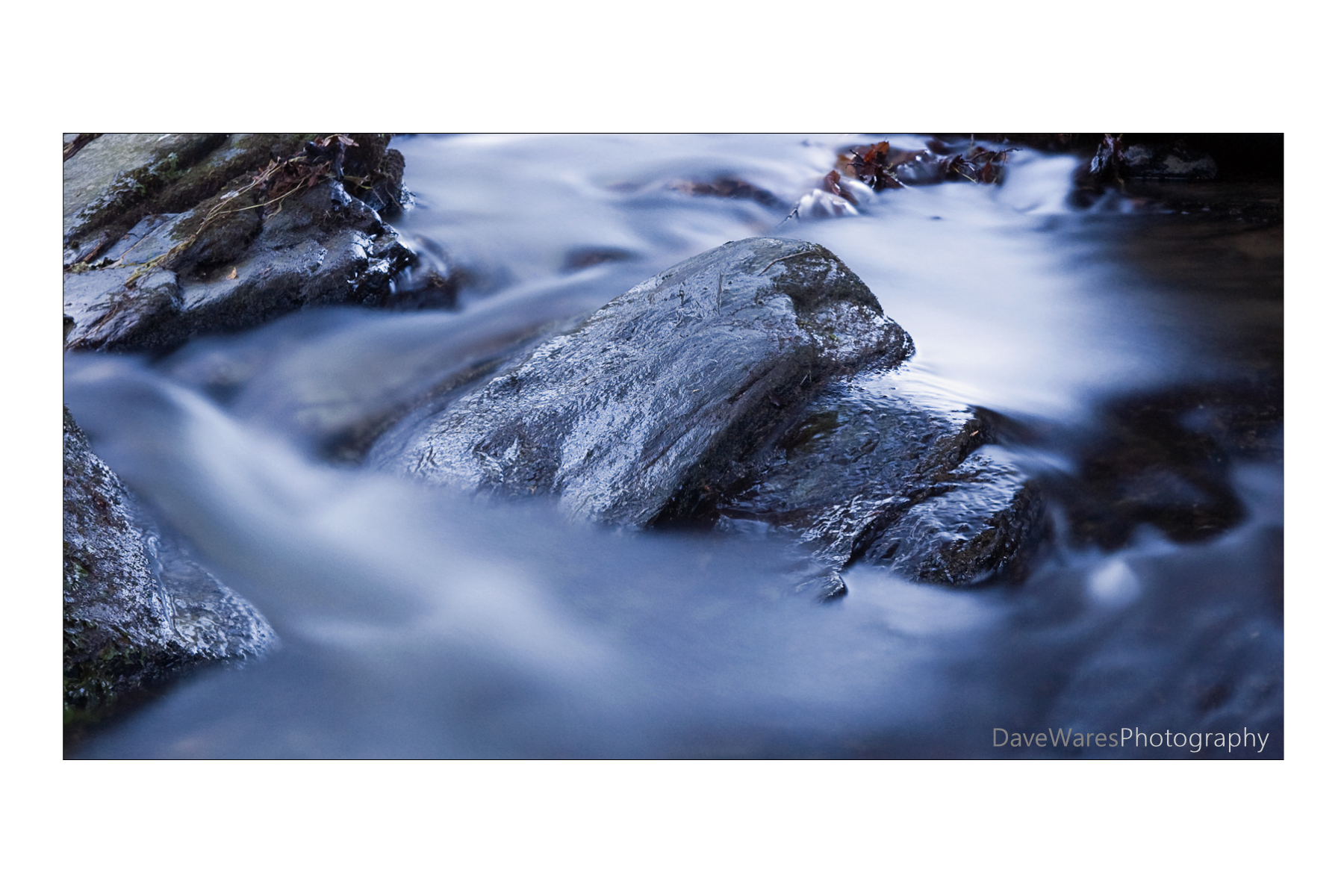
Title-‘Silk & Stone’

There has been a big trend in recent times for using large stop ND filters to help achieve a slower shutter speed at brighter times of the day, with the one big attraction being able to create that misty look given to water. The one thing that is much harder to get though, is the ethereal look that comes as a result of both a slower shutter and low light. Don’t get me wrong, I love misty water shots but to me the ones taken at dawn or dusk have a much greater sense of mood.

Being a common side effect of shooting water in low light means you don’t need to spend big bucks on fancy ND filters either, but whether you’re out at dawn or dusk there is one thing that you will need, and that is moving water; it’ll be no good if you’re standing by a lake with water so still it’s like looking at a mirror.

Getting that misty effect is quite straight forward; you’ll want to set the iso to it’s lowest setting such as iso100 (200 on some Nikon models), and make sure you have the camera on a tripod with either a cable or remote release. Ideally you’ll want to be aiming for a shutter speed greater than 1 second as it is at this speed that water starts to blur nicely. Your choice of f~stop is up to you but I tend to set mine between f16 and f22 to help with both depth of field and slowing the shutter further.

The picture you see above was shot with the tripod straddling across the middle of a stream, very close to the water with me trying very hard not to slip on the wet rocks. Thank goodness I had a decent pair of walking shoes on. It was taken at iso200 for 30seconds with the white balance set to sunny. Because of the time of day ( late eve) the shot has been given a very blue cast, but when I tried to correct for this in Lightroom it seemed to lose its mood, so I left it as shot.

Blog, HDR, Tips, Urbex

Multiplicity- The making of ‘We are one’

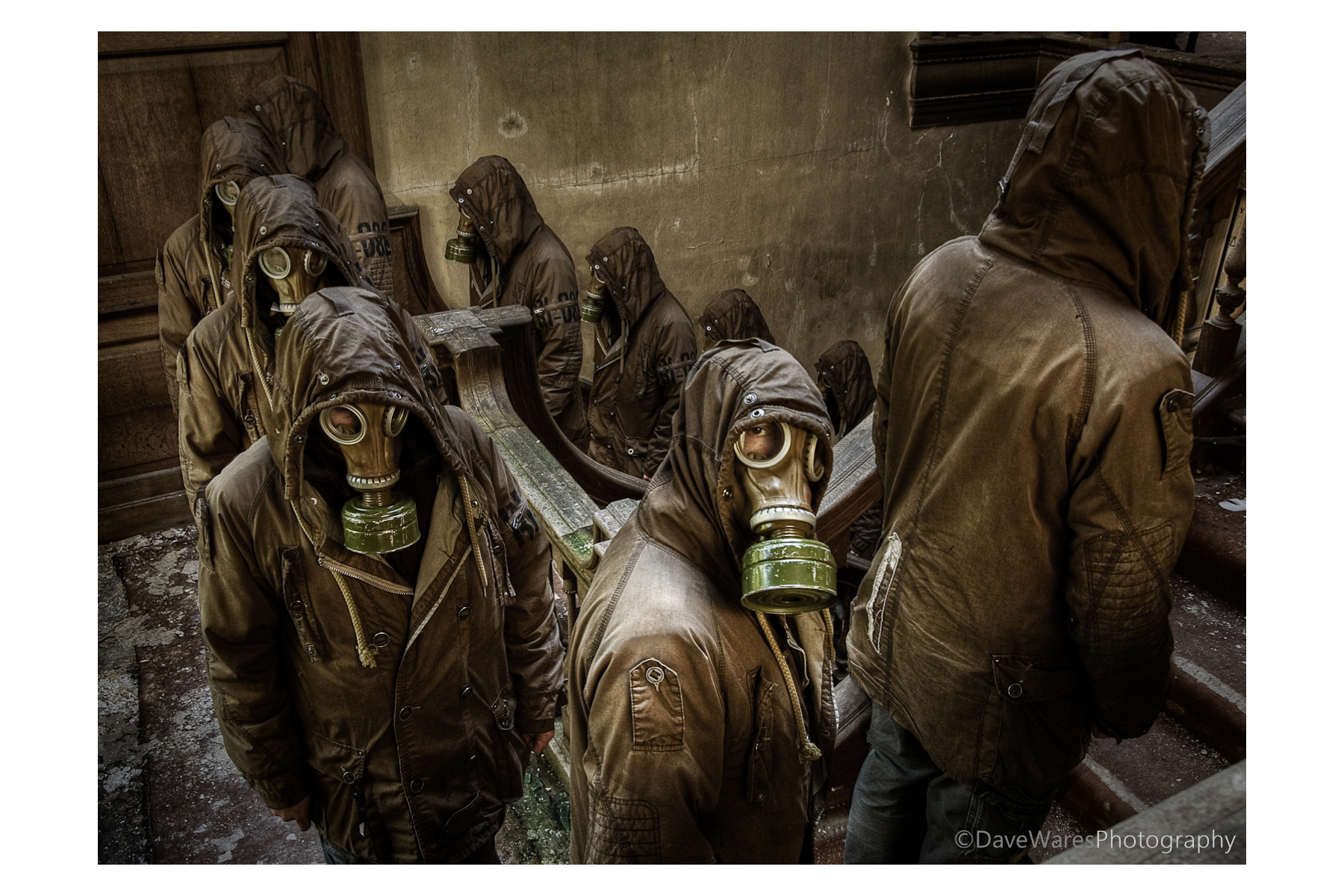
Some people have been asking me about how I went about producing this shot, so I’ve finally got round to doing a post on it.

About a year ago (almost to the day) during an urban exploration shoot I took a series of photographs to create a sort of surreal image of a bunch of sinister looking figures ascending the main staircase. That sinister figure was to be me in that ever popular urbex accessory, the gas mask. I had been to this location once before and between visits I was pondering different ways of making an interesting picture. Having knowledge of the location I knew exactly where to place the camera and though my initial thought was to have me on each step, I decided that it would probably become too cluttered and so decided to stand on every other step instead. It wasn’t until a couple of months later that I would actually attempt to put all the shots together.

People have been doing multiplicity shots for years and I think it’s something everyone tries out at some time or another. The process itself is actually quite straight forward, though it can become rather time-consuming depending on how many people you want in the final result. As with any kind of photography it always works best if you have a decent idea or point to the picture rather than doing one for the sake of the process, if that makes sense.
So here’s how to do it.

First set up the camera on a tripod and switch the camera to manual exposure mode as you want consistent exposures throughout the shots, then set the shutter to remote self timer. Next is choosing where to focus and what aperture you’ll want. You’ll most probably be using a wider angle so you’ll be able to get away with a much more shallow depth of field, this will in turn increase the shutter speed and help to avoid recording any unwanted movement, especially in lower light situations such as in my shot. In this shot I decided that I wanted to have the focus primarily of the figure facing the camera, so with the autofocus still on and remote in hand I took a test shot standing in the centre of the scene. Once this shot was taken I went back to the camera and switched the focus to manual thus keeping it focused in the right place. So now we have the camera in total manual control so each of the shots exposure and focus will be exactly the same. This is very important when it comes to merging them all together later. Then I just had to get into position, press the shutter (on timer) and as soon as I heard it click move to the next position, and so on.

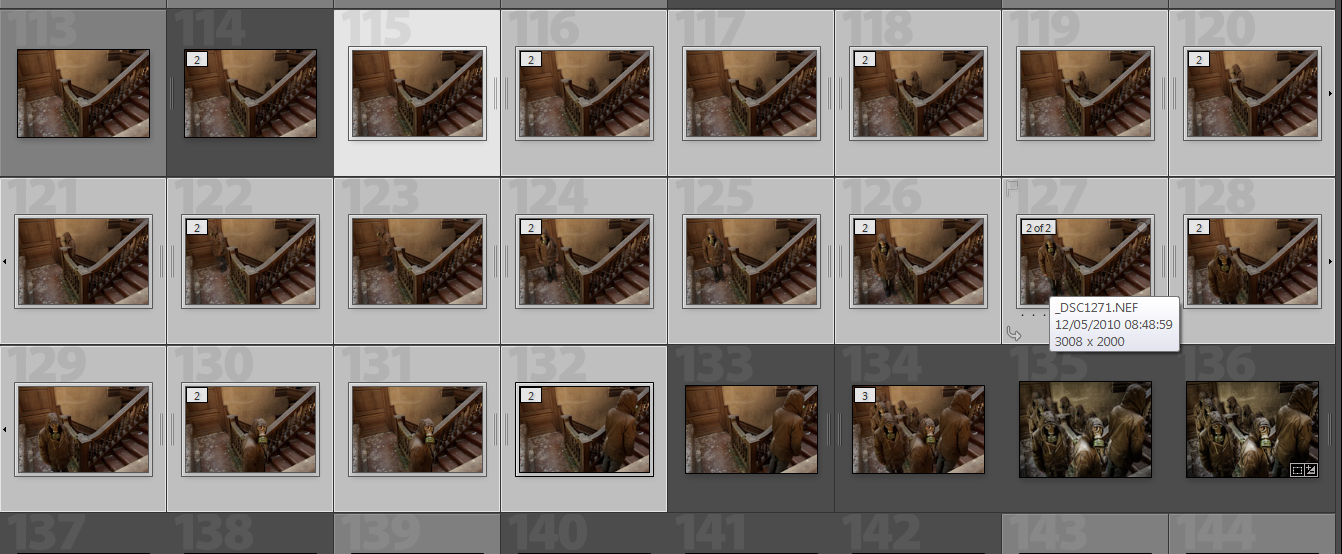
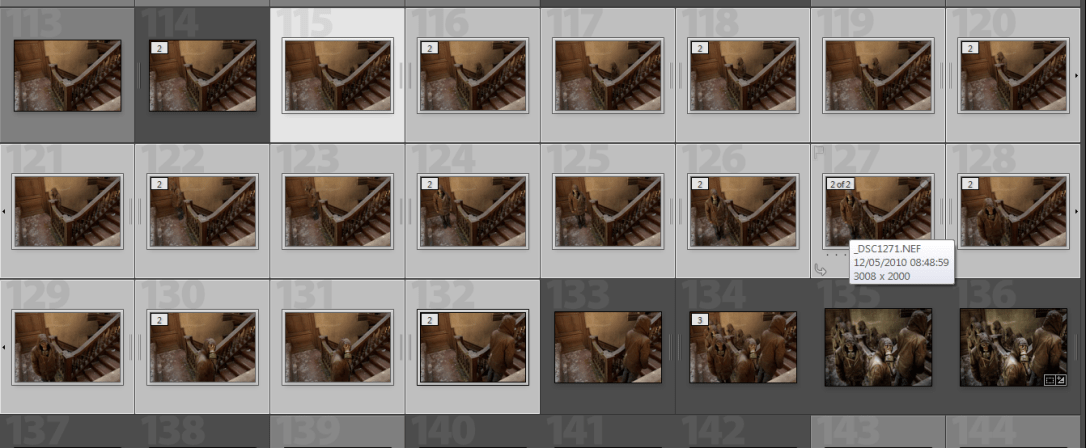
So what you’ll end up with is a series of shots as you see in the picture above.

At this point I did no processing at the RAW stage, we want to keep total consistency and so I merged the shots before doing any post processing in terms of  exposure or colour etc. The next this is to bring the shots into Photoshop or similar software with a layers capability. You can bring them all in at once or, as I did, bring only a couple in at a time. This was just for my own benefit so I didn’t get confused.

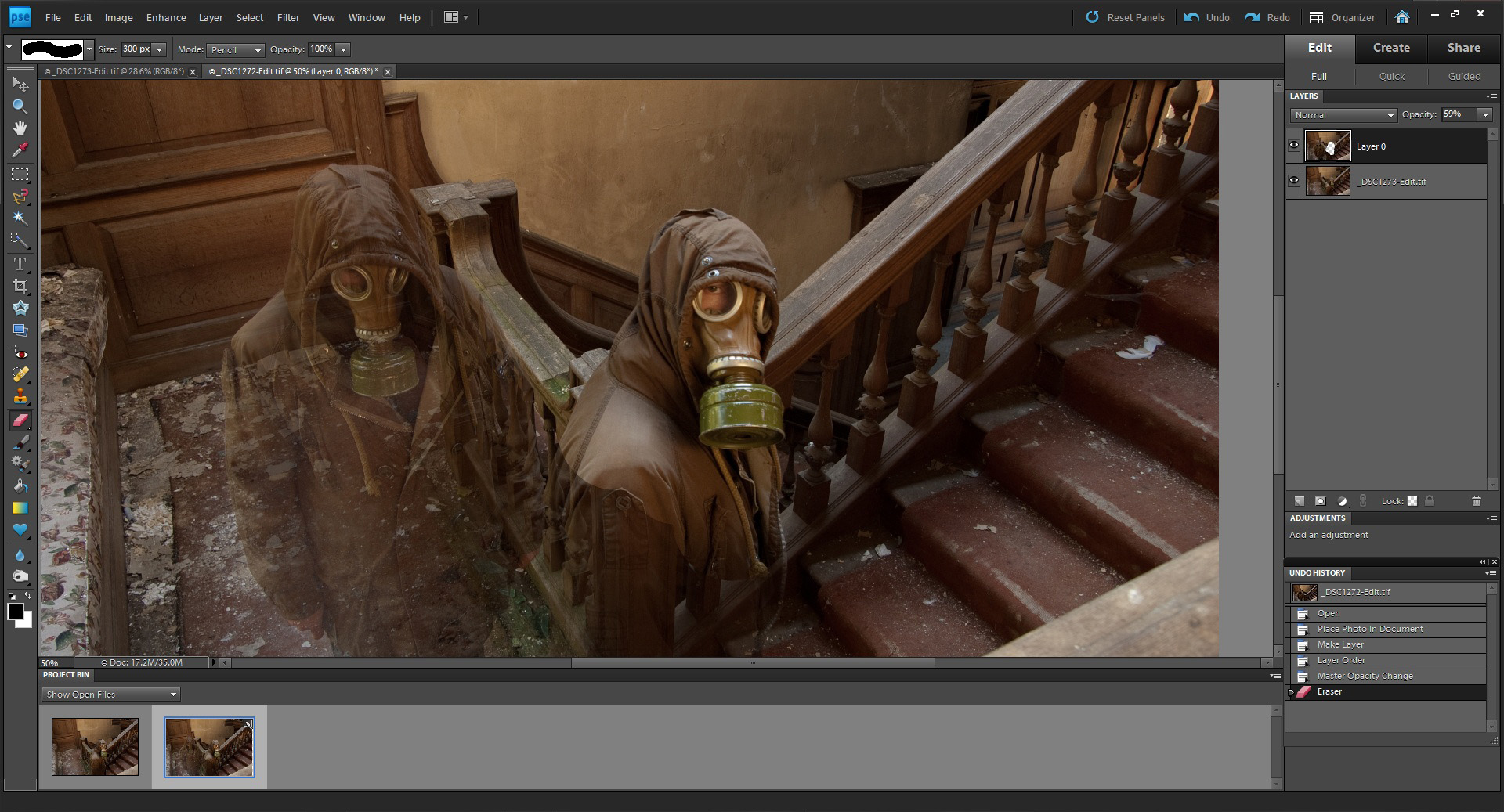
If you have overlapping people then make sure you have the layers set so that the furthest figure is set as the bottom layer (to unlock a background layer just double click on it, a box will appear, just click OK). Click on the top layer and reduce the opacity to around 60%, you should now see both figures as in the picture above. Zoom in as much as you like and grab the eraser tool then start to rub through over your figure. Try to be as careful as you can but if you slightly go over the edges it shouldn’t matter too much as all your shots are exposed the same. Of course you can always go back a step with the history palette.

Once you’ve revealed all of your figure change the opacity back to 100% and checking it all looks good, right-click on the top layer and merge the layers. Bring in the next image as a layer and repeat the process.

Tip: If you have all your images in the project bin (as seen here in Photoshop Elements9) you can simply drag an image onto the main one to add as a layer.

Once all ten of my images were together I then imported them back into Lightroom to make my tonal adjustments and a slight crop to tighten the composition. In addition to this I decided to tonemap it in Photomatix to give added drama and grunge. You can see the difference in the thumbnails on the lower right in the middle shot.

And there you have it. This has probably been my most well received shot to date and I was very happy indeed when it was chosen ‘Best image’ at the Sussex Federation DPI competiton this year.

I hope this has been of some use to some of you, I know there are a number of tutorials out there on this subject but this is how I go about it.

Thanks for looking and happy shooting.